An APK file can be exactly what it claims to be — or it can carry something you didn’t ask for. Whether it turns out to be one or the other usually depends on where it came from and what’s actually packed inside it. Scanning an APK before you install it won’t give you a 100% guarantee, but it does give you real evidence to work with, and that evidence is worth collecting before you tap “install.”
This guide walks through a practical process for checking an APK for malware: where to get it, how to scan it, how to read the results, and what other signals to weigh alongside a scan.
What Is APK Malware?
Malware is software designed to do something harmful or unwanted — steal data, monitor activity, serve unwanted ads aggressively, or take actions the user never agreed to. Inside an APK, this kind of code can be bundled alongside a normal-looking app, so the file name and icon alone tell you very little.
It’s also worth separating a few categories that often get lumped together:
- Malware — code built with clearly malicious intent (data theft, remote control, destructive behavior).
- Potentially unwanted software — not necessarily malicious, but behaves in ways users didn’t sign up for.
- Aggressive advertising — intrusive but not inherently malicious.
- Suspicious behavior — unclear or undocumented actions that warrant more investigation.
Not every unusual APK is malware, and not every official-looking APK is safe. The point of checking is to gather evidence, not to jump to conclusions either way.
Can You Check an APK for Malware Before Installing It?
Yes. An APK can be examined before it ever reaches your device’s app list. Several types of checks work together to build a clearer picture:
- File scanning
- Developer/source verification
- Permission review
- APK identity and version comparison
- Digital-signature checks, where a trusted reference exists
- Independent security information
- Behavioral analysis, where available
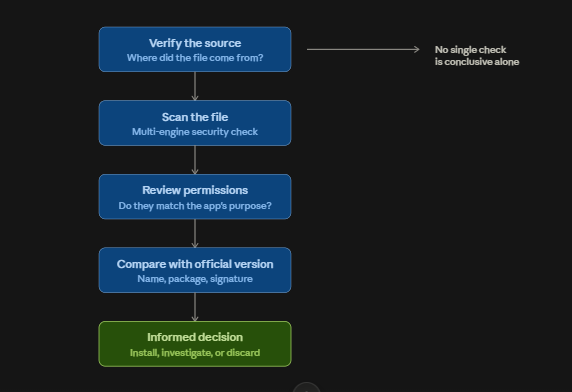
None of these checks is conclusive on its own. Together, they give you a reasonable basis for a decision.
Step 1 — Get the APK From a Source You Can Verify
Before any scan happens, the source of the file matters. Ask where the APK actually came from:
- Was it downloaded directly from the developer or an official distribution channel?
- Did it come from a reputable app store or distribution platform?
- Did it come from an unfamiliar APK site with no verifiable ownership?
- Did it arrive through a link in a message, social media post, or ad?
Not every third-party source is malicious, but an unclear or unverifiable origin removes one of your strongest pieces of evidence. If you can’t establish where a file came from, treat that as a gap you need to fill before moving forward — not something to ignore.
Step 2 — Check the APK’s Basic Information
Before scanning, look at what the file itself tells you:
- App name
- Developer or publisher
- Package name
- Version number
- File size
- Release notes or release date
- Requested permissions
None of this proves anything by itself. A different file size compared to what you expected, for instance, might just mean a different build or a newer version — not tampering. The goal here is to note anything that looks inconsistent, so you can dig deeper later.
Step 3 — Scan the APK With a Reputable Security Service
Uploading an APK to a reputable multi-engine scanning service is one of the most useful checks available to an everyday user. Services like VirusTotal run a file against a large number of independent antivirus engines at once, rather than relying on a single vendor’s detection.
A few things to understand about how this works:
- Multi-engine scanning aggregates results from many independent security vendors.
- Each engine uses its own detection methods, so results can vary between them.
- Detection names differ between vendors even when they’re flagging the same underlying issue.
- A scan reflects what was detected at the time of scanning — not a permanent verdict.
This guide won’t present a specific scan result for any particular APK, since no actual scan was performed as part of writing it. Treat any example results you see elsewhere as illustrations, not as a substitute for scanning the actual file yourself.
How to Read an APK Malware Scan Result
This is where a lot of users either overreact or under-react. Here’s how to interpret different outcomes:
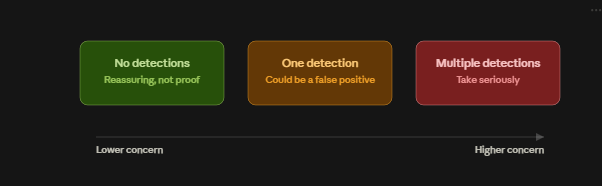
No detections. This is a reassuring sign, but it isn’t an absolute guarantee. New or sophisticated threats aren’t always recognized by every engine right away.
One detection. A single flag from one engine can sometimes be a false positive or a broad heuristic match rather than confirmed malware. It’s a reason to look closer, not necessarily a reason to panic.
Multiple independent detections. When several reputable engines flag the same file, that consistency carries much more weight and should be taken seriously.
Different detection names across engines. Security vendors often name the same threat differently, or classify it under different categories. Differing names don’t automatically mean disagreement about whether something is a problem.
What Is a False Positive?
A false positive is when a security engine flags a file as malicious even though it isn’t. This happens for a few reasons:
- Heuristic detection methods look for patterns associated with malware, which can occasionally match legitimate code.
- Modified or repackaged APKs can trigger detections simply because their structure differs from the original.
- Newer or less common apps sometimes get flagged more often than established ones, simply due to limited history.
A false positive is a real possibility, but it isn’t an excuse to dismiss every detection either. The right response is to look for supporting or conflicting evidence — not to assume the scan is automatically wrong.
Step 4 — Check APK Permissions
Permissions tell you what an app is asking to access: things like SMS, contacts, microphone, camera, location, storage, notifications, or accessibility services.
The key question is whether the permissions make sense for what the app actually does.
- A messaging app asking for notification access is reasonable.
- A simple flashlight app asking for access to your SMS messages or contacts is not obviously reasonable, and deserves a closer look.
A permission request by itself doesn’t prove malicious intent. But permissions that don’t match the app’s stated purpose are one of the more accessible warning signs available to a non-technical user.
Step 5 — Check Whether the APK Is Modified
APKs circulate in several forms beyond the original release:
- Original APK — unmodified, as released by the developer.
- Modified / modded APK — altered to change features or behavior.
- Patched APK — adjusted, often to bypass some restriction.
- Repackaged APK — rebuilt and redistributed, sometimes with different signing information.
- Cracked APK — modified to bypass paid features or licensing.
Modification itself doesn’t guarantee malicious content, but it does make it harder to know what’s actually inside the file. Once an APK has been repackaged, you’re relying on trust in whoever modified it — not the original developer. Risks associated with modified files include altered code, added components, undisclosed trackers, unwanted advertising, or outright malicious changes.
Step 6 — Compare the APK With the Developer’s Official Version
Where a reference version exists, compare:
- App name
- Developer identity
- Package name
- Version number
- Icon
- Permissions requested
- Release information
Differences don’t automatically mean the file is malicious — but they do mean you can’t yet establish that it’s consistent with the official release. The goal of this step is provenance and consistency, not an automatic verdict.
Step 7 — Check the APK’s Digital Signature
Every properly published Android app is digitally signed by its developer. This signature is a way of proving that updates to an app are coming from the same source as the original release.
- A signature helps establish continuity between versions of an app.
- If a certificate changes unexpectedly between versions, that’s worth investigating.
- Signature checking is most useful when you have a trusted reference signature to compare against — without one, it’s harder to draw conclusions.
This isn’t meant to turn you into an Android developer. It’s simply another data point that can support or undercut your confidence in a file.
Step 8 — Look for Independent Security Information
Beyond scanning the file yourself, look for outside context:
- Security reports or advisories related to the app or developer
- Independent analysis from credible sources
- Reporting from established cybersecurity outlets
- Publicly available developer information
- Version history
- User reports, treated as one input rather than proof
A handful of unverified forum comments shouldn’t be treated as definitive. But a pattern of consistent, credible reporting is meaningful evidence worth factoring in.
Can a Malware Scanner Guarantee an APK Is Safe?
No — and this is worth stating plainly.
- New or unrecognized malware may not be detected yet by any engine.
- Different scanners use different detection methods, so coverage varies.
- Sophisticated malware can be built specifically to evade detection.
- False negatives (missed detections) are possible, just as false positives are.
- An app’s behavior after installation can differ from what a static file scan reveals.
A clean scan means the tested security tools didn’t identify a known or suspected threat at that particular time — not that the file is guaranteed safe indefinitely.
Signs That an APK May Be Suspicious
Some warning signs worth weighing together, rather than in isolation:
- Unknown or unverifiable publisher
- A download source with no clear ownership or reputation
- Branding that closely imitates a known app
- A misleading or generic app name
- Permissions that don’t match the app’s purpose
- Prompts to disable security features during setup
- Multiple detections from reputable scanning engines
- Unexpected login or payment requests
- Suspicious redirects during download or installation
- Excessive or intrusive advertising
- Unexplained background activity after installation
- Unusual battery drain or data usage
No single item on this list proves malware. A cluster of several is a much stronger signal than any one alone.
What If the APK Is Detected as Malware?
If you haven’t installed it yet:
- Don’t install it.
- Delete the file.
- Avoid re-downloading it from the same source.
- Look into the developer or source further if you want more clarity.
- Look for a trusted alternative that serves the same purpose.
If it’s already installed:
- Pause sensitive activity (banking, logins) on the device if appropriate.
- Uninstall the suspicious app.
- Review the permissions it had been granted.
- Run a reputable security scan on the device.
- Check your important accounts for unusual activity.
- Change passwords if credentials may have been exposed.
- Review recent banking or payment activity if relevant.
- Keep Android and security software up to date.
- If suspicious behavior continues, consider professional help.
Not every detection means disaster — but a methodical response beats guessing.
APK Malware Checking Checklist
- Verify the source
- Verify the developer
- Check the package name
- Check version information
- Scan the APK with a reputable multi-engine service
- Review detections carefully
- Check requested permissions
- Determine whether the APK is modified
- Compare it against a trusted/official version
- Look for independent security information
- Don’t install if multiple warning signs remain unresolved
Common Mistakes When Checking APKs
- Trusting the file name as proof of what’s inside
- Trusting a download site’s own “100% safe” claim
- Assuming zero detections means guaranteed safety
- Skipping the permissions review entirely
- Ignoring who the developer actually is
- Downloading a second copy from another unverified site after the first looked suspicious
- Disabling built-in security protections to get an app to install
- Treating any single antivirus detection as automatically conclusive
- Installing first and checking “later”
Final Verdict
Scanning an APK before installation is a genuinely useful safety step — but it works best as one part of a broader process. Combine it with source verification, developer verification, a permissions review, and outside evidence before deciding whether to install. No single check, including a malware scan, can promise that an APK is completely safe. What you can do is stack enough evidence to make an informed decision instead of a blind one.
FAQ
How can I check an APK for malware? Combine several checks: verify where the file came from, review its basic details and permissions, scan it with a reputable multi-engine service, and compare it against the developer’s official version where possible.
Can VirusTotal scan APK files? Yes, VirusTotal and similar multi-engine services accept APK files and run them against numerous security engines at once, providing a broader view than any single antivirus tool.
Is a clean APK scan enough? Not on its own. A clean scan is a good sign, but it reflects what known security tools detected at that moment — it doesn’t rule out new or sophisticated threats.
Can APK files contain viruses? Yes. An APK can be packaged to include malicious code alongside, or instead of, its advertised functionality, which is why checking before installing matters.
How do I know if an APK is malicious? No single signal proves it definitively. Look at the source, scan results, permissions, whether the file is modified, and any independent security reporting together.
Can a modded APK contain malware? It’s possible. Modified APKs can include altered code or added components beyond what the original developer released, which is why their origin and purpose deserve extra scrutiny.
Can antivirus software detect all APK malware? No. Detection depends on how recognizable the threat is to existing security engines; new or well-disguised malware can go undetected, at least temporarily.
Should I install an APK with one antivirus detection? Not immediately. Investigate further first — check for false-positive possibilities, review permissions, and look for supporting or conflicting evidence before deciding.
How can I scan an APK without installing it? Upload the APK file directly to a reputable multi-engine scanning service before running or installing it on your device.