If you’ve ever downloaded an app from outside the Google Play Store, you’ve probably had a small moment of hesitation before tapping “install.” That instinct is worth listening to. APK files let Android users install apps directly, without going through Play Store review, and that flexibility is exactly why it’s worth knowing how to check if an APK is safe before installing it.
To be clear from the start: an APK file isn’t inherently dangerous. It’s just a packaging format — the same format Google Play itself uses behind the scenes. What actually determines risk is where the file came from, who built it, what it asks your phone to do, and how it behaves once it’s on your device. This guide walks through a practical way to evaluate all of that, step by step, without relying on guesswork or fear.
What Is an APK File?
APK stands for Android Package Kit. It’s the file format Android uses to bundle everything an app needs — code, resources, permissions, and metadata — into a single installable package. Every app on your phone, including the ones from Google Play, exists as an APK at some point in the installation process.
People install APKs outside Google Play for a variety of ordinary reasons: an app isn’t available in their region, a developer offers a direct download, they want an older version, or they’re testing a beta release. None of that is inherently risky behavior.
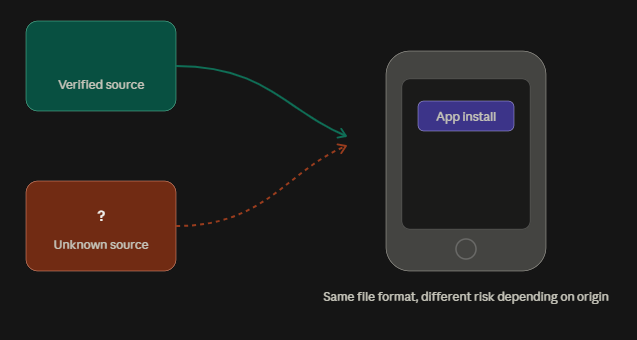
The added risk comes in when the APK is sourced from somewhere you can’t verify. Google Play has automated review processes and developer accountability built in. A random download link shared in a chat group or a mirror site with no clear ownership doesn’t have any of that, which means the burden of checking shifts to you.
How to Check If an APK Is Safe Before Installing
Here’s a structured way to work through it. You don’t need to do all ten steps for every single app, but the more uncertain the source, the more of these are worth running through.
Step 1: Check Where the APK Came From
Start with the source. In rough order of trustworthiness, that generally looks like:
- The developer’s official website
- The app’s official Google Play listing (even if you’re sideloading a specific version)
- Established, well-known distribution platforms
- Unfamiliar third-party APK sites
- Mirror or “backup” download sites
- Links sent through messaging apps, forums, or social media
This isn’t a strict hierarchy — a lesser-known site isn’t automatically dangerous just because it’s unfamiliar. But the further you move from an identifiable, accountable source, the more other checks in this list matter. A link with no clear ownership and no way to contact anyone behind it deserves more scrutiny before you install anything.
Step 2: Verify the Developer or Publisher
Look for basic signs that a real, identifiable developer stands behind the app:
- A named developer or company, not just a generic label
- A working official website
- A matching developer listing on Google Play, if one exists
- Real contact information
- Consistency between the app’s branding and the developer’s public identity
Red flags here include a website that was clearly set up very recently, branding that looks copied from a more established app, developer names that don’t match anywhere else, support pages that lead nowhere, or simply no way to verify who made the app at all.
Step 3: Compare the APK With the Official Version
If an official version of the app exists — on Google Play or the developer’s site — compare it against the APK you’re about to install:
- App name
- Developer name
- Version number
- Package name
- App icon
- Approximate file size
- Requested permissions
Differences don’t automatically mean something is wrong. Legitimate apps release different builds for different regions, beta channels, or device architectures. But if several things don’t line up at once — a different package name and a different developer and an odd permission list — that’s worth pausing on.
Step 4: Check the APK File and Version
A few file-level details are worth a quick look:
- Version number and, where available, release date
- File size
- Package name
- Which device architecture or Android version it targets
- Whether the file name follows a normal naming convention or looks altered
An unusually large or unusually small file isn’t proof of anything on its own — compression, included assets, and bundled libraries all affect size. Treat this as one data point, not a verdict.
Step 5: Scan the APK Before Installing
Before installing, it’s worth running the file through a reputable security tool or a multi-engine scanning service, which checks a file against many antivirus engines at once rather than just one.
A few things are worth keeping in mind:
- No scanner catches everything, and false positives happen — a single detection out of dozens of engines isn’t automatically damning.
- Multiple detections across different engines carry more weight than one isolated flag.
- A clean scan is useful evidence, but it is not an absolute safety guarantee. Scanners work primarily from known malware signatures and behavioral patterns, so newer or well-obfuscated threats can slip through.
Use scanning as one layer of your overall check, not the only one.
Step 6: Check Android Permissions
Once you can see an app’s requested permissions — either before installing, through a scanner, or in Android’s settings after installation — ask whether they make sense for what the app actually does.
Common permission categories to pay attention to:
- SMS
- Contacts
- Microphone
- Camera
- Location
- Accessibility services
- Notification access
- Storage and files
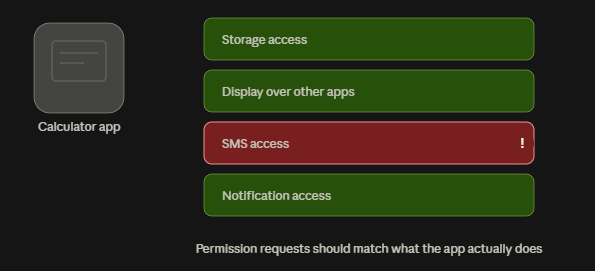
A flashlight app asking for SMS access is a bigger question mark than a messaging app asking for notification access. No single permission proves an app is malicious — plenty of legitimate apps request broad access for real functionality — but a mismatch between what an app does and what it asks for is worth noticing.
Step 7: Check Whether the APK Is Modified
APKs circulate in several forms beyond the original developer release:
- Original — unmodified, from the developer
- Modded — altered to add or remove features
- Cracked — altered to bypass payment or licensing
- Patched — modified for a specific fix or workaround
- Unofficial repackaged — rebuilt and redistributed by someone other than the developer
Modified APKs deserve extra caution, not because every single one is harmful, but because once someone else has altered the code, you’re trusting them rather than the original developer. That can mean altered functionality, extra permissions bolted on, embedded tracking, or in worse cases, an actual malicious payload. It can also just mean a less stable app with no update path. Either way, the safety guarantees that come with an official release no longer apply.
Step 8: Check the APK’s Digital Signature
Every legitimately published APK is digitally signed by its developer. Think of the signature as a way of confirming “this file was built and released by the same identity as before” — it doesn’t scan for malware, but it does verify authorship and integrity.
Why this matters practically: if you’re comparing a new version of an app against an older, trusted one, a signature that suddenly doesn’t match the developer’s previous signing certificate is a meaningful warning sign. It suggests the file was repackaged by someone other than the original developer, even if everything else about it looks similar on the surface.
You don’t need to be a cryptography expert to use this check — plenty of APK inspection tools will show you signature information in plain terms.
Step 9: Look for Independent Information
Before installing anything from an unfamiliar source, spend a few minutes searching for outside context:
- Independent reviews of the app
- Any security reports or write-ups mentioning it
- Information about the developer’s track record
- Community discussion or user reports
- The app’s history — has it changed hands, been reported, or been pulled from stores before?
No single source, including this one, should be treated as the final word. Comparing what multiple independent sources say gives you a more reliable picture than relying on one review or one download page’s claims about itself.
Step 10: Check the App After Installation
Checking an APK’s safety doesn’t stop the moment you tap install. Keep an eye on how it behaves afterward:
- Unexpected pop-ups or ads outside the app itself
- A sudden jump in advertising volume
- Noticeable battery drain
- Unusually high data usage
- Background activity you can’t explain
- New permission requests appearing after the fact
- Unexpected redirects when tapping links
- General device slowdown
- Notifications that don’t match the app’s purpose
If you notice several of these together, it’s reasonable to uninstall the app, review what permissions it had, and run a security scan on your device.
Red Flags That an APK May Be Unsafe
None of these prove an APK is harmful on its own. But when several show up together, it’s worth taking a step back:
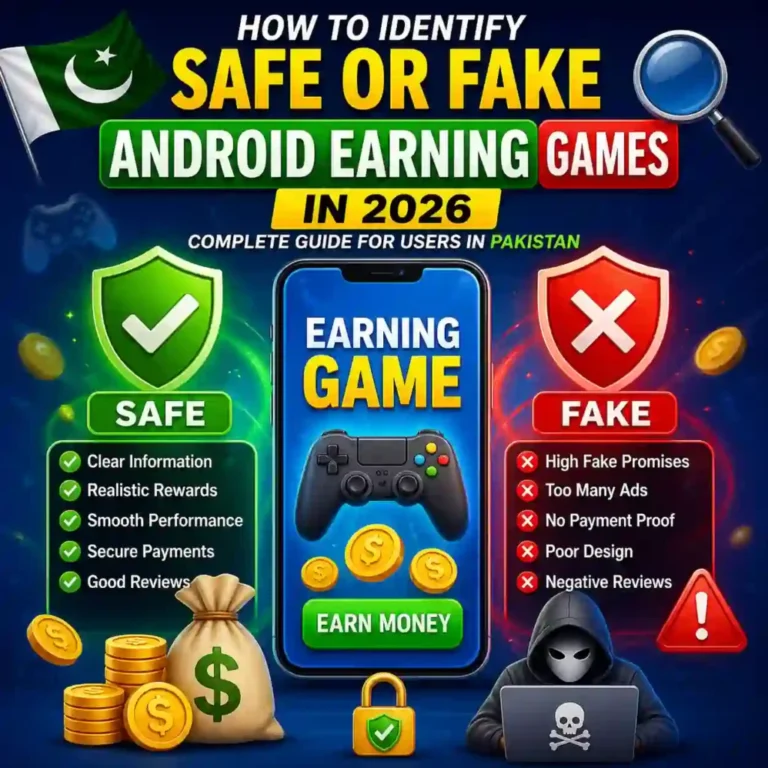
- Unknown or unverifiable publisher
- A download source with no clear ownership
- An app name that closely mimics a popular app
- Branding that appears copied from another product
- Permissions that don’t match the app’s stated purpose
- A modded, cracked, or otherwise altered APK
- Detections from a security scanner
- Messages pushing you toward an urgent “update”
- Prompts to disable Android’s built-in security protections
- Requests for accessibility access with no clear functional reason
- Login or payment prompts that appear out of context
- Developer information that contradicts itself across sources
Is Every APK From a Third-Party Website Dangerous?
No — and it’s worth being precise about why. “APK” describes a file format. “Third-party site” describes a distribution channel. Neither one, by itself, tells you whether a specific file is safe.
An APK downloaded from a third-party site can be an exact, unmodified copy of an official release. It can also be a repackaged, altered version distributed without the developer’s involvement. The format looks identical either way — what differs is provenance, whether the code has been modified, what permissions it requests, and how it behaves.
Saying “third-party APKs are unsafe” skips over all of that nuance. A more accurate framing: the less verifiable the source, the more the other checks in this guide matter.
APK Safety Checklist
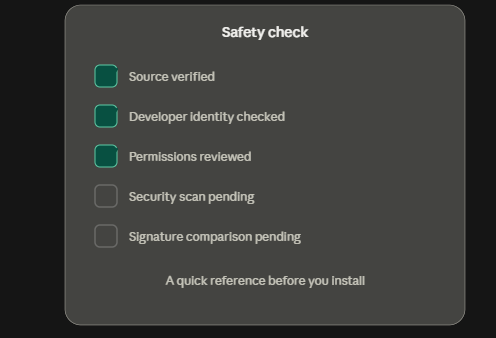
A quick reference before you install anything from outside Google Play:
- Do I know who developed this app?
- Can I verify the developer through an official website or Play listing?
- Is the APK coming from a source I can identify and trust?
- Does the version match available official information?
- Have I checked the package name against the official app, if one exists?
- Have I scanned the APK with a reputable multi-engine tool?
- Do the requested permissions make sense for what the app does?
- Is this APK modified, cracked, or repackaged in any way?
- Have I looked for independent reviews or reports about it?
- Do I know what to do if the app starts behaving suspiciously after install?
What to Do If You Think an APK Is Unsafe
- If you haven’t installed it yet, don’t. Delete the file.
- If it’s already installed, uninstall the app.
- Review what permissions it had been granted.
- Run a security scan on your device.
- If you entered any login credentials or payment details while using the app, check that account’s recent activity.
- Change passwords for any accounts you accessed through the app, where appropriate.
- Avoid re-downloading the same app from another unverified source.
- Where applicable, report the suspicious app through the relevant platform or store’s reporting channel.
Taking these steps promptly is generally enough to limit the impact — there’s no need to assume the worst-case outcome by default.
Frequently Asked Questions
Can an APK contain malware?
Yes, an APK can contain malware, particularly if it has been modified or comes from an unverified source. This isn’t true of all APKs — it depends entirely on the specific file’s origin and integrity.
How can I check an APK before installing it?
Verify the source, check the developer’s identity, compare it against any official version, scan it with a reputable tool, and review the permissions it requests. No single step is sufficient on its own — using several together gives a clearer picture.
Is downloading an APK safe?
Downloading an APK from a verified, official source carries similar risk to any normal app installation. Downloading from an unknown or unverifiable source carries more risk, which is why the checks in this guide matter more in that situation.
How do I know if an APK is fake?
Look for mismatches: a developer name that doesn’t match official records, a package name that differs from the real app, copied branding, or a digital signature that doesn’t match previous versions from the same developer. Multiple mismatches together are a stronger signal than any one alone.
Can antivirus software detect malicious APKs?
Antivirus and multi-engine scanning tools can detect many known threats and suspicious patterns, but they aren’t infallible. A clean scan is useful evidence, not an absolute guarantee, since new or heavily obfuscated threats can sometimes evade detection.
Should I install a modified APK?
Modified, cracked, or repackaged APKs carry more inherent uncertainty because you’re trusting whoever altered the file rather than the original developer. Some modified APKs are relatively benign; others carry real risk. Extra caution and additional verification steps are warranted either way.
Are APK files illegal?
The APK format itself isn’t illegal — it’s simply how Android apps are packaged. Legality issues can arise around specific files, such as pirated or cracked software, but the format itself is standard and legal.
What permissions should I be careful about?
Pay closer attention to permissions like SMS, contacts, microphone, camera, location, and accessibility services, especially when they don’t obviously relate to the app’s core function. Context matters more than the permission in isolation.
Final Verdict
Don’t judge an APK by its filename or its download page alone. A file’s safety comes down to a combination of factors: where it came from, who built it, whether it matches the official version, what permissions it requests, whether its signature checks out, what security scans show, and how it actually behaves once installed. Checking a few of these takes a few extra minutes — far less time than dealing with a compromised device or account afterward.